

Manage appointments in the schedule
Add appointments, confirm requests, and change booking times.
In Schedule, choose a day or week. Use filters to narrow the view by employee, service, or booking status.
Add an appointment manually
Section titled “Add an appointment manually”- Open Schedule and select the action to add a booking.
- Choose the client, service, provider, and time. If your permissions allow it, you can also add a client during this process.
- Review the details. If you see an overlap warning, check the schedule before deciding whether to continue.
- Save and reopen the appointment from the schedule to check its details.
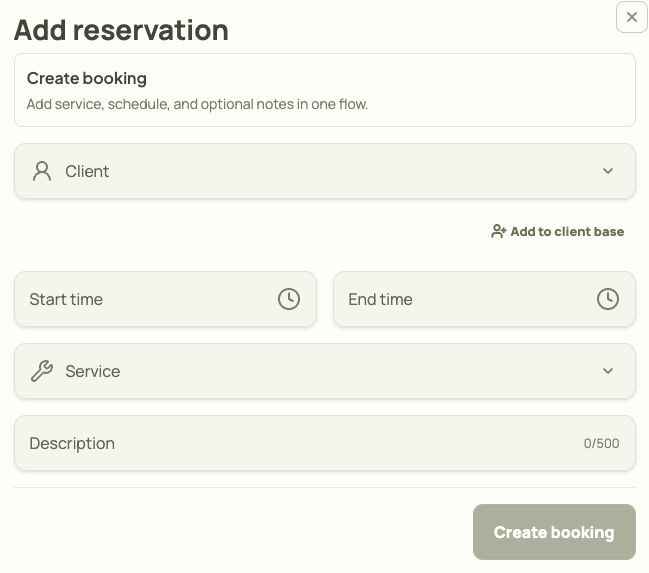
- Select a client if you want to link the booking to a contact.
- Check the start and end times.
- Choose the service.
- Create the booking after reviewing the details.
Confirm, edit, or cancel an appointment
Section titled “Confirm, edit, or cancel an appointment”- Open the booking details. Use the confirmation action for a pending booking if you are accepting the request.
- To change a visit, edit the details and save. Check the resulting time and status.
- To call off a visit, use the cancellation action and confirm it. Verify that the booking status is canceled.