

Inviting team members
Invite an employee, share their link, and give them the permissions they need.
An invitation lets someone join your business in Tulemi Business. The employee appears on your team after accepting the invitation.
Before you send an invitation
Section titled “Before you send an invitation”- Sign in to the right business with permission to manage the team.
- Have the person's email address ready. Check whether you have an available seat and whether your workspace shows any access messages.
Create an invitation
Section titled “Create an invitation”- Open Team and select Invite employee.
- Enter the person's email address. You can also enter their name.
- Expand Employee access and review Own availability, Past schedule editing, Client view, and Client editing. Enable the permissions the person needs for their work.
- Select Send invitation and wait for the message that tells you the delivery status.
- On the confirmation screen, you can select Copy link and send it directly to the person you invited. Share the link privately because it grants access to the invitation.
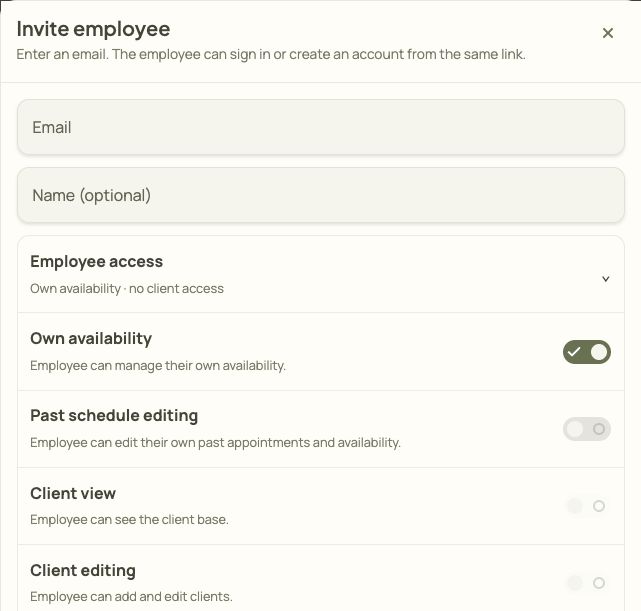
- Enter the email address of the person you are inviting.
- Expand Employee access and review the permission switches.
- Enable Client view only if the employee needs it.
How an employee accepts an invitation
Section titled “How an employee accepts an invitation”- The invited person opens the link and checks the business name and invitation details.
- If they are signed out, they choose to sign in or create an account. The account should use the same email address as the invitation.
- They accept the invitation. In Team, check that the employee now appears in place of the pending invitation.
Change permissions or cancel an invitation
Section titled “Change permissions or cancel an invitation”For a pending invitation, use Edit access, Send again, or Cancel invitation in the team list. Canceling the invitation disables the link. If a link expires, check the invitation status and resend it if the option is available.
After the employee joins, manage their permissions in Team. Availability, past schedule editing, and client permissions are separate settings. Joining the team does not grant admin access.
Common issues
Section titled “Common issues”- No email arrived. Check the spam folder and email address, then share the active link directly.
- Wrong account. Check that the signed-in email address matches the invitation.
- Expired or canceled link. Check the invitation status in Team.
- Cannot send an invitation. Read the message about permissions, available seats, or workspace access before trying again.