

How to set up your schedule
Set weekly working hours, add exceptions, and check what clients can book.
Your schedule starts with the availability of the people who provide your services. Set a regular working week and add exceptions for one-off absences or extra shifts.
Before you start
Section titled “Before you start”- Sign in to Tulemi Business and select the right business.
- Add a service and assign it to the person who provides it.
- Make sure you have permission to manage that person's availability. Employees can manage their own availability if you give them that permission.
Set weekly availability
Section titled “Set weekly availability”- Open Team and select Set availability for the person whose hours you want to change.
- Under Weekly availability, turn on the days the person works. Days you leave off are marked Day off.
- Enter the start and end times. The end time must be later than the start time. Select Add range to split the day into more than one working period.
- Select Save availability. If you see an error, correct the hours or try saving again. Closing the panel does not confirm that your changes were saved.
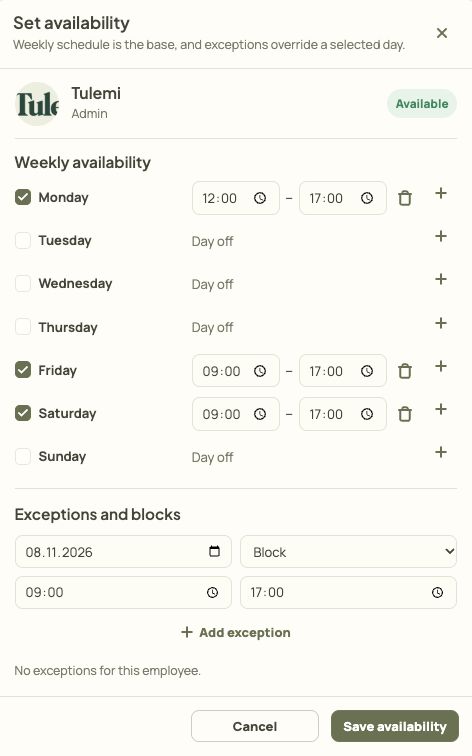
- Enable a working day.
- Set the start and end of the time range.
- Add another range on the same day.
- Save availability.
Add an exception, break, or block
Section titled “Add an exception, break, or block”In the same panel, open Exceptions and blocks. Use this section to change availability on a specific date without changing the whole week.
- Select a date and choose an exception type from Block, Break, or Extra shift.
- Set the hours and select Add exception. Check that the new exception appears in the list.
- To change an existing exception, select Edit exception, make your changes, and select Save exception.
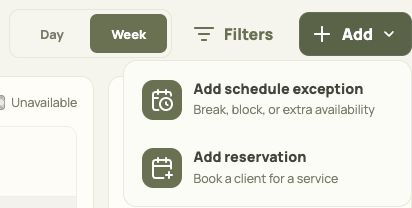
- Switch between day and week views.
- Open the schedule filters.
- Add a break, block, or extra availability.
- Add a reservation for a client.
Check the result
Section titled “Check the result”Open Schedule and choose the relevant day or week and team member. Turn on the availability overlay in the filters and compare the working hours with existing appointments. Under Get started, check whether the business is ready to take bookings, including service assignments and the next available time.
A client cannot see an available time
Section titled “A client cannot see an available time”- Check that the employee is assigned to the correct service.
- Check that the available time is long enough for the service.
- Check weekly availability, exceptions, breaks, and existing appointments.
- Open the client view from the dashboard and check the same service and date before sharing your booking page.